
Recent Blog
Lost Your Phone Abroad? A Financial Security Checklist for OFWs
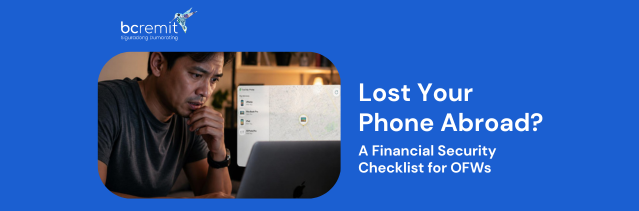
Losing your phone is stressful anywhere, but for an overseas Filipino worker? It can be especially serious. Your phone may contain your banking and remittance apps, saved passwords, email, digital wallets, one-time-password messages, identity documents, and conversations with family members in the Philippines.
A stranger who gains access to it may have several ways to target both your money and your personal information, so the first few hours are critical. Whether your phone was stolen, left on public transport, or simply misplaced, follow this checklist to protect your accounts and regain control.
1. Try to locate and lock the phone immediately
Start by using the device’s official location service from another phone or computer.
For an iPhone, sign in to Apple’s Find My service and mark the device as lost. Lost Mode locks the screen and lets you display a contact number or message for anyone who finds it. Marking the device as lost also suspends Apple Pay on that device.
For Android, use Google’s Find Hub. Depending on the phone’s settings and connection, you may be able to view its location, make it ring, lock it, or display a message on the screen. Google may also show the device’s most recently recorded location when its current position is unavailable.
Do not travel alone to retrieve a phone shown in an unfamiliar or unsafe location. Contact local police or building security instead.
2. Suspend your mobile number
Call your mobile provider as soon as possible and ask it to suspend the SIM or eSIM. Your phone number may be used to receive verification codes for banking, email, social media, and money-transfer accounts.
Even when the device itself is locked, control of the number could help a criminal attempt password resets or impersonate you.
Ask the provider about:
- Blocking the existing SIM
- Transferring your number to a replacement SIM or eSIM
- Adding or confirming an account PIN
- Blocking the phone’s IMEI where appropriate
Google notes that a mobile provider may use a device’s IMEI number to disable it. The number may be available through Find Hub, your phone’s original packaging, purchase records, or your mobile account.
Be alert to SIM-swap fraud during this period. One precaution recommended by the US Federal Trade Commission is adding a PIN or password to your mobile account, as text-message authentication alone may not stop a SIM-swap attack.
3. Contact your banks and freeze your cards
Next, call every bank or card provider connected to the lost phone.
Ask them to temporarily freeze your debit and credit cards, review recent activity, and remove the lost device from mobile-banking access. Explain that the phone was lost or stolen so the fraud team understands the urgency.
Check for:
- Card purchases you do not recognize
- Bank transfers or new beneficiaries
- Cash withdrawals
- Password-reset notifications
- Changes to your contact details
- New devices added to the account
Use the phone number printed on your physical card, a bank statement, or the bank’s official website. Do not call a number sent to you through an unexpected text or email.
Freezing a physical card may not always be necessary when only the device is missing, but your issuer should make that decision after reviewing the risk.
4. Secure your digital wallets
If you use Apple Pay, marking your iPhone as lost automatically disables Apple Pay on that device. You can also remove payment cards through another Apple device, your Apple Account online, or by contacting each card issuer. Removing a card from one Apple device does not necessarily remove it from your other devices.
Android users should lock the phone through Find Hub and contact their card issuers when needed. Google advises users to secure or erase a device remotely when it cannot be safely recovered.
Also review any other wallets or payment applications installed on the phone, including Philippine e-wallets and transport-payment apps.
5. Protect your remittance accounts
Your remittance account may contain saved recipients, transaction history, personal documents, and linked payment methods.
From a trusted device, change the password for every money-transfer service installed on the lost phone. Look for an option to sign out of other sessions or remove recognised devices. Contact customer support if you cannot access the account or notice an unfamiliar transaction.
Do not approve a login, transfer, or one-time password simply because someone claims to be helping recover your phone. Legitimate support agents should not ask you to disclose your full password or verification code.
For BCRemit users, the service is accessible through its website as well as its mobile app, and its login process may require mobile-number verification when a new device is used. BCRemit also advertises 24/7 customer support for customers needing assistance.
6. Change your email password first
Your primary email account is often the key to your other accounts because it can receive password-reset links.
Change its password before updating less critical services. Then sign out of existing sessions, remove the lost phone from your trusted-device list, and review recovery email addresses and phone numbers.
After securing your email, change the passwords for:
- Online banking
- Remittance and payment apps
- Apple or Google accounts
- Social media
- Messaging apps
- Cloud storage
- Shopping accounts
Use a different password for every important account. Where available, use an authenticator app, passkey, or security key rather than relying only on SMS verification.
7. Warn your family and trusted contacts
Tell your family in the Philippines that your phone is missing. A thief may message your relatives while pretending to be you and claim that you urgently need money, an OTP, bank information, or a transfer to a new account.
Ask your family not to trust requests coming from your old number until you confirm that the SIM has been replaced. Agree on another way to verify your identity, such as a video call, a private family question, or contact through a trusted relative.
Keep the message simple: Do not send money or share codes based only on a chat from my number.
8. Erase the phone if recovery is unlikely
Remote erasure should usually come after you have tried to locate and lock the device, because erasing it may stop further location tracking.
Google states that a remote factory reset permanently deletes data stored on the Android device, although it may not erase an SD card. After erasure, the phone’s location will no longer appear in Find Hub.
Apple users can erase a missing device through Find My. Keep the device linked to your Apple Account so that Activation Lock continues to discourage unauthorized use.
Prepare before anything happens
Once you have replaced or recovered your phone, use the experience to strengthen your security.
Turn on Find My or Find Hub, enable automatic backups, use a strong screen lock, record your IMEI number, and keep backup authentication codes somewhere separate from your phone. Google specifically recommends preparing backup codes because losing a phone can also mean losing access to your normal two-step-verification method.
Remember: your phone can be replaced, but your identity, savings, and family’s trust are much harder to recover.
Send Money Home Securely with BCRemit
When you are ready to resume sending support to your loved ones, access BCRemit only through its official app or website. BCRemit lets customers send money to the Philippines online through bank-account credit and cash-pickup options, with customer support available when assistance is needed.
Secure your account, verify your recipient, and send your next remittance with BCRemit!
Subscribe to our Newsletter
Our Global Presence
🌐 Online Services Available Open 24/7
-
Sunday: Open 24 hours
-
Monday: Open 24 hours
-
Tuesday: Open 24 hours
-
Wednesday: Open 24 hours
-
Thursday: Open 24 hours
-
Friday: Open 24 hours
-
Saturday: Open 24 hours